5 Powerful Linux CLI Tools You Should Be Using in 2026

Linux Terminal

Graphical interfaces come and go, but the command line is forever—and in 2025, the Linux CLI scene is more intelligent and more capable than ever. Whether you’re managing servers or just trying to get things done faster, the right terminal tools can upgrade your entire Linux experience.
Here are five powerful CLI tools that deserve a permanent place in your toolkit this year.

1. Ripgrep—The Search Tool That Makes grep Feel Slow

If you still rely on plain grep for searching code, configs, or system files, it’s time to try ripgrep. Ripgrep (rg) is a modern drop-in replacement for grep.

Why It’s Great

  • Incredibly fast
  • Respects .gitignore files automatically
  • Smart defaults (recursive search, sensible output)
  • Integrates with VS Code, Helix, and Neovim

2. fzf—Fuzzy Finder for Everything

fzf is a fuzzy finder for the command-line. The longer you use it, the more you wonder how you lived without it.

What It Can Do

  • Fuzzy-search file names
  • Fuzzy-search command history
  • Fuzzy-search running processes
  • Create interactive pickers for your own scripts

3. bat—The Better cat

cat is fine, but bat is better. It’s a drop-in replacement that adds modern features without changing your workflow.

Features

  • Syntax highlighting
  • Git integration
  • Line numbers
  • Automatic paging with less

Bonus: Works beautifully with ripgrep and fzf for a hyper-efficient terminal workflow.

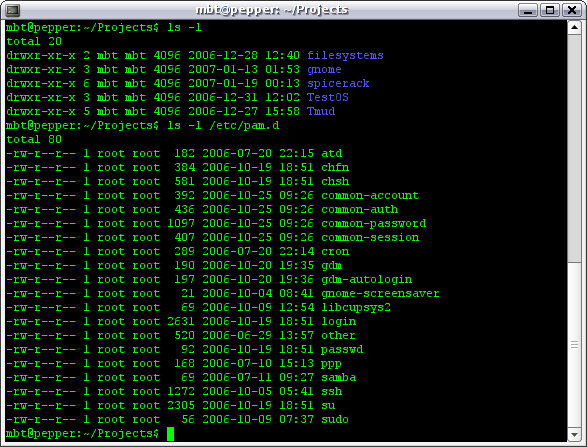
4. eza—Modern Replacement for ls

ls gets the job done, but eza (formerly exa) gives you a more readable view of your file system.

What You Get

  • Colorized output
  • Tree views
  • Git status indicators
  • Optional file icons
  • Better sorting options

Why You’ll Love It

Directory browsing will feel fun.

5. fastfetch—System Info With Style

Fastfetch is the spiritual successor to Neofetch—rewritten for performance, aesthetics, and modern systems.

Highlights

  • Extremely fast (written in C)
  • Beautiful ASCII logos
  • Highly configurable
  • Works on nearly all distros

Perfect For: Showing off your Linux setup.

Honorable Mentions

Zoxide: A smarter cd that learns your frequently used directories.

fd: A modern replacement for find—fast, intuitive, and colorized.

Final Thoughts

The Linux command line isn’t just a place to type commands—it’s a launchpad for automation, efficiency, and mastery. These five tools make Linux faster, more powerful, and more enjoyable in 2025.

Why NixOS Is the Most Important Linux Distro You Haven’t Mastered Yet

[![NixOS Icon](/wp-content/uploads/2025/11/NixOS-Icon-02.png){.alignleft}](/wp-content/uploads/2025/11/NixOS-Icon-02.png)

For years, Linux enthusiasts, **including myself**, have chased the “perfect distro.” Some want stability. Some want bleeding-edge packages. Some want reproducibility. And some—let’s be honest—just want something cool to tinker with at 2 a.m.

But **NixOS** quietly sidesteps this entire debate. It doesn’t compete with Ubuntu, Fedora, or Arch in the traditional sense. Instead, it **redefines what a Linux distribution can be**. We warned, **NixOS does have a steep learning curve**, but if you haven’t tried it, you’re missing one of the most transformative distros in modern computing.

## A Paradigm Shift, Not a Distro Hop

Most distributions configure the system through a web of package managers, shell scripts, and config files. NixOS ignores all of that and says: *”What if your entire system was a single, declarative, version-controlled document?”*

With NixOS, your system _is_ code. Not metaphorically, but literally. One file (*configuration.nix*, or a *flake*) describes:

– Installed software
– System services
– Users and groups
– Networking
– Hardware support
– Desktop environment
– Custom system tweaks

Change the file → rebuild the system → done.
If you can manage a Git repo, you can manage your entire OS.

## Reproducibility: The Superpower Other Distros Wish They Had

Imagine the following scenario: You set up the perfect workstation, terminal tools, development environments, fonts, and drivers. Then your SSD dies. Typically, you’d spend hours reinstalling.

On NixOS: **Git clone → nixos-rebuild switch → your entire system is back.**
Not just installed packages—the **entire configured system**, down to the kernel modules and systemd services.

## Below are some reasons why NixOS has a cult following among:
– DevOps engineers
– Software developers
– Homelabbers
– HPC folks
– Tinkerers and power users

### The Nix Package Manager

Nix, the package manager behind NixOS, is a beast—beautiful, powerful, and occasionally intimidating.

Here’s why it matters:
#### 1. Atomic upgrades

If an update breaks something, you can roll back your entire system in seconds.
#### 2. Zero dependency hell

Packages are built in isolated environments, so no more:

– Library conflicts
– Version clashes
– ABI breakage
– “This requires Python 3.12, but your system is on 3.11.”

#### 3. Multiple versions of the same software

Need Python 3.10 **and** Python 3.12?
Need two versions of Node?
Want three versions of GCC?

*No problem with Nix.* This flexibility makes NixOS feel like Linux in cheat mode.

## Home Manager: Your Dotfiles, Evolved

If NixOS handles system configuration, **Home Manager** handles user-level configuration—dotfiles, packages, shells, editors, theming, and more.

Home Manager lets you:

– Version-control your dotfiles
– Reproduce them on any machine
– Avoid “dotfile drift” across systems
– Switch between laptops/workstations effortlessly

Example:

home.username = {
programs.zsh.enable = true;
programs.starship.enable = true;
home.packages = [ pkgs.fastfetch pkgs.bat pkgs.exa ];
};

Rebuild → your environment is instantly standardized.

##### Home Manager is so good that even non-NixOS users install it. But on NixOS? It’s a match made in config-management heaven.

## Flakes: The Future of NixOS (and Why You Should Care)

Flakes add:

– Inputs (like package sources)
– Outputs (like your system config)
– Pinning (so updates never surprise you)
– Reproducibility across machines

Example:

nixosConfigurations.nixos = {   system = “x86_64-linux”;   modules = [ ./configuration.nix ]; };

Flakes lets you share your system between machines, maintain multiple configurations, and track changes.

## Why NixOS Feels Like Magic for Power Users

You’ll love NixOS if any of these statements hit home:

– “I want my whole system in Git.”
– “I want to rebuild a machine in 10 minutes.”
– “I’m tired of fixing dependency issues.”
– “I want the same environment on every machine.”
– “I want to understand _exactly_ how my system is built.”

NixOS gives you **control without chaos**, **flexibility without breakage**, and **power without fragility**.

## The Learning Curve: Real but Worth It

NixOS isn’t plug-and-play like **Pop!OS** or **Linux Mint**.

You will have to:

– Read docs
– Learn the Nix language
– Debug your configuration, and
– Occasionally mutter “Why isn’t this service starting?”

But once you get past the initial bump, something flips in your brain. You realize: *”This isn’t just a distro, but a better way to run computers.”*

## So, why haven’t you mastered it yet?

Not because it’s too hard—because it’s too _different_.

It asks you to let go of the old way of managing Linux.

But if you’re a Linux enthusiast, a sysadmin, or anyone who wants a smarter, reproducible, future-proof workflow, then NixOS isn’t just worth learning—it’s essential.

## Final Thoughts

I believe **NixOS** is the most important distro you haven’t mastered yet because it represents the next evolution of Linux use. Declarative systems, reproducibility, atomic upgrades, isolated builds, multiple versions, and Git-managed everything.

NixOS doesn’t just add features; it solves problems other distros have lived with for decades.

If you want a Linux environment that’s efficient, elegant, and engineered for power users, it’s time to give NixOS the attention it deserves.

And as always—welcome to the Saloon. Pull up a stool, grab a coffee, and let’s build your next great Linux system together!

Stretching Creativity (and Budgets) with 3D Printing in the Library

Stretching Creativity (and Budgets) with 3D Printing in the Library Banner

In today’s library world, creativity and technology often go hand in hand—and sometimes the most innovative solutions come from thinking small. At the Westhampton Free Library, we’ve discovered that our 3D printers aren’t just fascinating gadgets—they’re also powerful tools for saving money and supporting programs across departments.

Our library currently has three 3D printers: two Bambu Lab P1S printers and one Bambu Lab A1 Mini. These compact machines have become an integral part of how we bring creative ideas to life. Patrons regularly submit print requests for their own 3D models, and our staff uses the printers to support programming that stretches our budget while adding a unique creative flair.

Turning Plastic into Possibility

One of our biggest 3D printing success stories came from our Children’s Department. Each summer, the department runs a popular Summer Reading Club, where children earn Library Bucks—small coins redeemable for prizes. In previous years, we purchased printed wooden coins at a cost of over $1,000 for 1,500 pieces.

This year, we decided to try something different. Instead of ordering coins, we printed them in-house using our 3D printers. The results were not only visually appealing but also durable, customizable, and completely reusable. Best of all, the switch to 3D-printed coins saved the library over $1,000—proving that creativity can be just as valuable as funding.

Growing Ideas in the Garden

Our Adult Services Department also found innovative ways to use 3D printing. The library’s Seed Library and Reading Garden have become community favorites, offering patrons a chance to borrow seeds, learn about sustainable gardening, and enjoy the beauty of plants grown right here at the library.

To support these efforts, we’ve used our 3D printers to create custom gardening tools, planters, and propagation station accessories. These printed items are not only functional but also align with the library’s commitment to sustainability—reducing waste, reusing materials, and producing what we need right on-site.

Why 3D Printing Makes Sense for Libraries

For libraries on tight budgets, 3D printing represents an opportunity to combine technology, creativity, and practicality. Once the printers are set up, the ongoing costs are minimal—a roll of PLA filament costs around $15–$25 and can produce dozens of items.

From signage holders and name tags to program supplies and educational models, the potential uses are endless. Beyond saving money, these projects showcase how libraries can be MakerSpaces for the community, inspiring innovation and hands-on learning.

At the Westhampton Free Library, our 3D printers have become much more than equipment—they’re creative problem-solvers that help every department do more with less. Whether it’s printing a prize for a child, a tool for a gardener, or a model for a curious patron, 3D printing has proven to be one of our most versatile and valuable technologies.

💡 Benefits and Takeaways

  • Saves money: 3D printing reduces costs for program materials and supplies.
  • Encourages innovation: Staff and patrons can design and create solutions in-house.
  • Supports sustainability: Produces only what’s needed with minimal waste.
  • Engages the community: Demonstrates the library’s role as a creative technology hub.


Repurposing Older PCs as OPAC Stations with Debian Linux and OpenKiosk

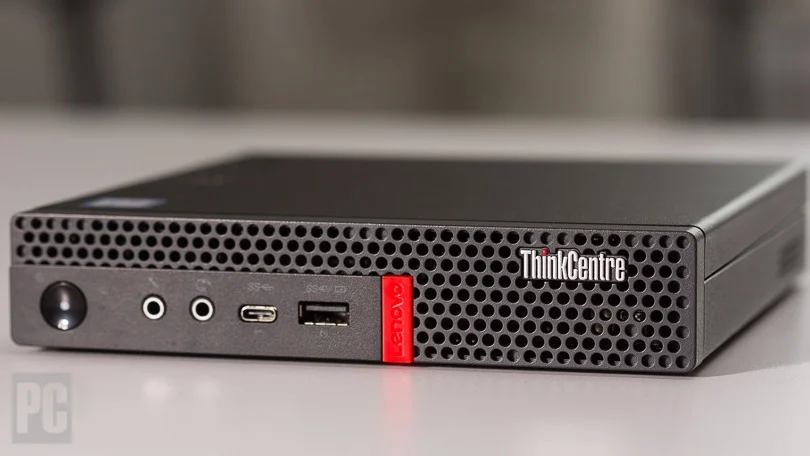
Lenovo Tiny PC

In many libraries, aging desktop computers end up gathering dust or are sent to the recycling bin. At the Westhampton Free Library, I saw an opportunity to give these machines a second life by turning them into dedicated OPAC (Online Public Access Catalog) stations. By combining Debian Linux, the OpenKiosk Web Browser, and Innovative’s Vega Discovery catalog, we created a secure, efficient, and cost-effective solution that benefits both patrons and staff.

Why Choose Debian Linux?

Debian Linuix Logo

When evaluating Linux distributions, I tested several options, including Ubuntu, Fedora, and even NixOS. While each has strengths, Debian quickly stood out for this project. Debian’s lightweight desktop environments, such as XFCE and LXDE, run smoothly on older hardware with limited memory and processing power. Unlike some distributions that bundle in numerous pre-installed packages and background services, Debian provides a clean, minimal installation. This helps reduce system overhead and speeds up boot times.

Another advantage is Debian’s reputation for long-term stability and predictable updates. Once configured, the systems require very little maintenance beyond regular security updates. This was important, since I don’t want to spend a lot of time constantly tweaking settings or troubleshooting software conflicts. Additionally, Debian’s robust documentation and active community support made it easier to find solutions to help customize the environment.

What is OpenKiosk?

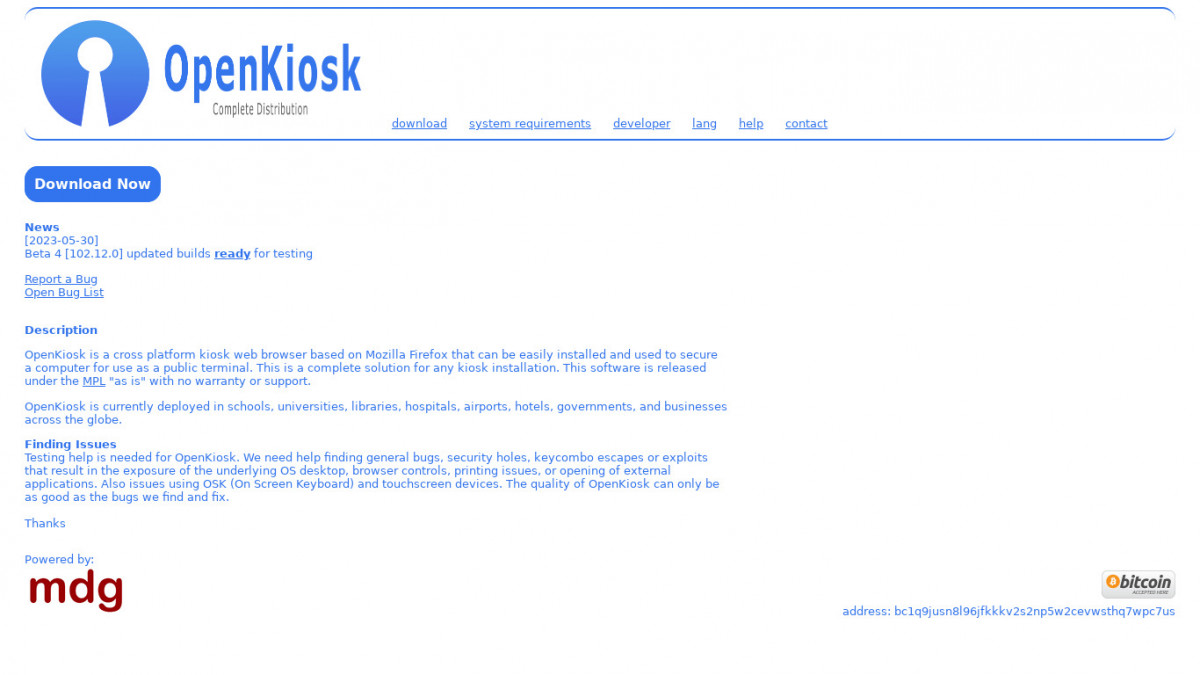
OpenKiosk Browser Homepage

I installed OpenKiosk to lock down the computers so they would function exclusively as catalog stations. OpenKiosk is an open-source kiosk browser released under the Mozilla Public License (MPL) and originally developed to provide a secure, customizable browsing experience for public settings such as libraries, schools, and museums.

OpenKiosk allows administrators to restrict which websites users can access, disable menus and toolbars, and prevent changes to settings. Because it is built on Firefox, it supports modern web standards and runs smoothly even on modest hardware. The interface is familiar to anyone who has used a web browser, which means patrons don’t need extra training to use it.

Using OpenKiosk’s Whitelisting Feature

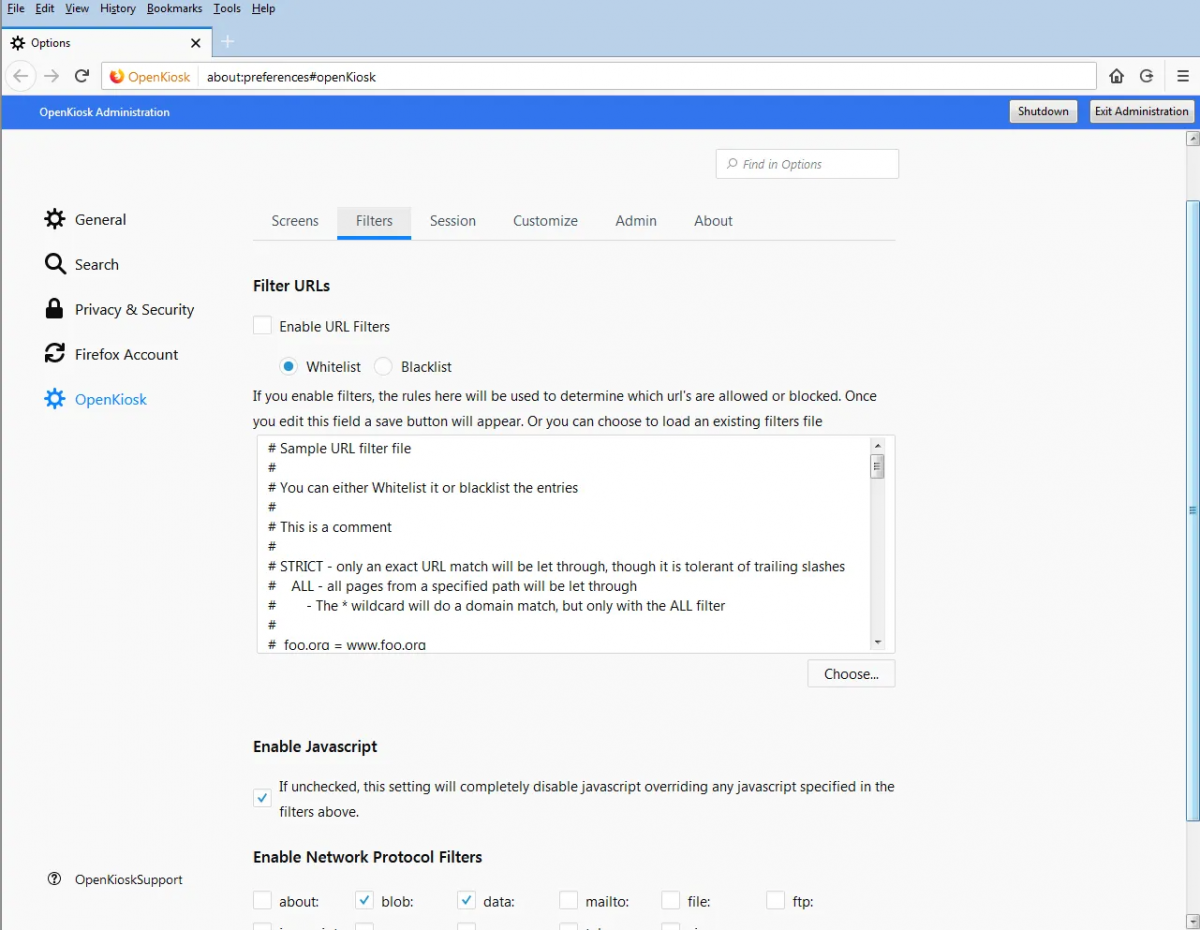
OpenKiosk Web Browser whitelist page

One of the most essential features of OpenKiosk is its whitelisting capability. OpenKiosk is configured to allow access only to our library’s OPAC URLs and homepage. This prevents patrons from navigating away to other sites, protecting them from potential security risks and keeping the stations focused on their purpose.

Setting up the whitelist is straightforward by editing the configuration to define the exact domains and subdomains that are permitted. OpenKiosk then automatically blocks any attempt to visit non-whitelisted websites or open external links. I also configured the system to launch OpenKiosk automatically when the computer starts and to disable any system menus or keyboard shortcuts that could exit the application or access the underlying operating system.

Integrating Vega Discover as the OPAC Software

WHAM OPAC

Our library uses Vega Discover, developed by Innovative Interfaces, as our OPAC platform. Vega Discover provides a modern discovery layer that makes it easier for patrons to search our catalog, explore collections, and manage their accounts. The interface is visually appealing, responsive on different screen sizes, and accessible to users with varying levels of technical skill. All while being ADA-compliant.

Vega Discover pairs exceptionally well with OpenKiosk because it provides a clean, focused experience without clutter or distracting elements. Patrons can walk up to any OPAC station and immediately begin searching without worrying about pop-ups, browser toolbars, or irrelevant content, and appreciate that the stations are reliable and easy to use.

Benefits and Takeaways


Repurposing these PCs has provided multiple benefits for our library. First, it saved us the cost of purchasing new dedicated hardware. Second, it reduced electronic waste by extending the useful life of computers that would otherwise be discarded. Third, it created a secure, maintenance-friendly environment that requires minimal intervention from staff.

Using Debian Linux and OpenKiosk together gave us the flexibility and control we needed without licensing fees or proprietary restrictions. Combined with Vega Discover’s modern catalog experience, our patrons now have a reliable, efficient way to find materials and explore the library’s resources.

Conclusion

Conclusion Infomap

For libraries looking to stretch their budgets and improve public computing, this approach can be a practical solution. With the end of support on Windows 10, many PCs that are unable to be upgraded to Windows 11 can still be useful. By combining Debian Linux, OpenKiosk, and Vega Discover, we created OPAC stations that are fast, secure, and sustainable. If you’re considering a similar project or have questions about configuration, I’d be happy to share more details or hear about your experiences.


Why I Left Evernote and Switched to Obsidian

Evernote and Obsidian Apps BoxingFor years, I was a loyal Evernote user. It was my digital filing cabinet, my task tracker, and my go-to app for jotting everything down. I stuck with it through clunky updates, layout changes, and new features I never asked for. But earlier this year, I finally made the switch to Obsidian — and I haven’t looked back.

The decision wasn’t sudden. It was more like a slow buildup of frustrations that eventually hit a tipping point.
The Breaking Point: Price and Ownership Uncertainty
My dissatisfaction began when Evernote raised its subscription costs. What used to be a reasonable annual fee suddenly almost tripled. As a longtime user who hadn’t needed many of the new “Premium” features, the cost hike felt like I was being priced out of my workflow.

Then came the acquisition by Bending Spoons. While I’ll admit that some of the app’s performance has improved under the new ownership, the sudden leadership change only added to my hesitation. What direction was Evernote heading in? Would it become even more commercialized and bloated with features I didn’t need?

It wasn’t just the cost that pushed me away — it was the sense that I was losing control over something I had grown to rely on.
Finding Obsidian: A Simpler, Smarter Alternative
Enter Obsidian, a Markdown-based note-taking app that stores everything locally by default. I had heard about it, but I assumed it would be too technical for me to understand. Surprisingly, it wasn’t. Obsidian made more sense to me than any other note-taking app I’d tried. It clicked.

Obsidian is built around a simple idea: your notes are plain text files, written in Markdown, stored on your machine. No proprietary formats. No cloud lock-in. You choose how and where your notes live. That alone was a relief.

I quickly found myself enjoying the minimalist writing environment and the way Obsidian stays out of your way. It just works — and it works well.
The Power of Plugins
What truly sets Obsidian apart, though, is its plugin ecosystem. The community around this app is not just active — it’s inspiring. There are plugins for everything, including kanban boards, calendar views, task management, backlink visualization, spaced repetition flashcards, and more.

I was able to build a workflow that mirrored my needs, not someone else’s idea of productivity. Daily notes, project dashboards, and even a web viewer, all linked through thought networks. The app evolved from a simple note-taker into a powerful productivity platform, completely tailored to my needs.

Compare that with Evernote, which increasingly felt like a rigid structure trying to mold me to its system.
Markdown and the Beauty of Portability
Another reason I prefer Obsidian is its support for Markdown. At first, I was intimidated by the syntax — asterisks for bold? Hashes for headers? But within a day, it became second nature. The payoff? My notes are future-proof. Markdown is widely supported and human-readable even without a dedicated app. If Obsidian were to disappear tomorrow, I’d still have access to everything, readable and usable.

Evernote, on the other hand, keeps your content in a proprietary format. Exporting is possible, but it’s messy and not something I want to deal with for hundreds (or thousands) of notes.
Privacy, Speed, and Simplicity
Obsidian’s local-first approach also gives me peace of mind. My notes aren’t sitting on someone else’s server unless I choose to sync them using my preferred method. It’s faster, too — no lag, no waiting for notebooks to load, no mysterious syncing issues.

And best of all? Obsidian is free for personal use. There are optional add-ons like Obsidian Sync or Publish if you want them, but there’s no pressure to subscribe — no constant nudging to upgrade.
Conclusion
To be fair, Evernote still has its strengths. Its web clipper is excellent, and it’s an accessible choice for many users who want a cloud-first solution with countless integrations. But for me, the cost, complexity, and creeping sense of vendor lock-in outweighed the benefits.

Obsidian gave me back control. It reminded me that productivity doesn’t need to be expensive or complicated. Sometimes, all it takes is a clean writing space, a little Markdown, and the freedom to build something that works for you, not the other way around.

If you’re feeling boxed in by subscription models or burned out by bloated apps, I’d encourage you to give Obsidian a try. You might be surprised how much better note-taking feels when it’s truly your own.